QR Code Is Not Just a URL: The Schemas Every Dev Should Know
otpauth, WIFI, MECARD, deep links, and PIX — the internal QR code schemas that solve real development problems, with code examples.
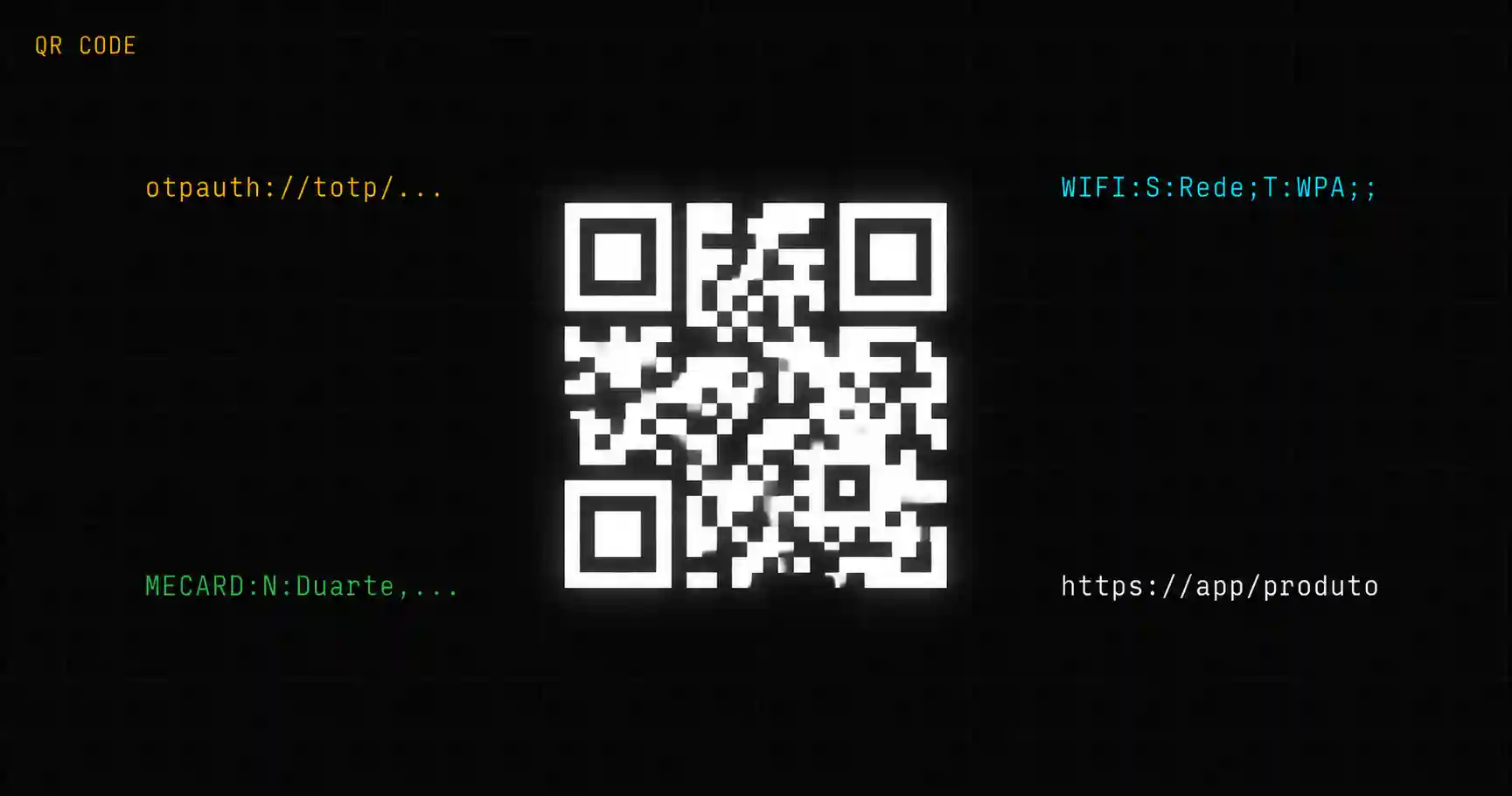
I was setting up TOTP for an internal service and needed to generate a QR code with the secret key so the team could scan it in Google Authenticator. I threw the string into the first generator that appeared, scanned it, and the app didn't recognize anything. The problem wasn't the generator — it was that an authentication QR code isn't a URL. It's a different schema, with its own structure, and most articles about QR codes never mention this.
A QR code is just a text container. What changes completely from case to case is what you put inside it. This post covers the schemas that solve real development problems — with the exact strings for each one.
What a QR code actually stores
A QR code doesn't store an image, doesn't store arbitrary binary — it stores text. The reader decodes that text and decides what to do with it. If it starts with https://, the phone opens the browser. If it starts with WIFI:, Android or iOS offers to connect to the network. If it starts with otpauth://, an authenticator app interprets the key.
The practical data limit depends on the configured error correction level:
| Level | Redundancy | Capacity (text) |
|---|---|---|
| L (Low) | 7% | ~2,953 chars |
| M (Medium) | 15% | ~2,331 chars |
| Q (Quartile) | 25% | ~1,663 chars |
| H (High) | 30% | ~1,273 chars |
Level H can withstand up to 30% of the code being damaged and still decode correctly — useful for QR codes printed on surfaces that wear. The trade-off is that the code becomes denser and harder to scan from a distance. For most cases, level M is the right balance.
The practical implication: long URLs with tracking parameters, JWT tokens, or any string larger than ~1,000 characters will generate QR codes too dense to scan reliably under normal conditions.
otpauth:// — how 2FA uses QR codes internally
The otpauth:// schema was formalized by Google and is what every authenticator app (Google Authenticator, Authy, 1Password) expects to find when scanning a 2FA setup QR.
The complete URI has this structure:
otpauth://totp/{label}?secret={BASE32_SECRET}&issuer={issuer}&algorithm=SHA1&digits=6&period=30
Real example:
otpauth://totp/MyApp:user@company.com?secret=JBSWY3DPEHPK3PXP&issuer=MyApp&algorithm=SHA1&digits=6&period=30
The fields that matter:
totp— Time-based OTP (the standard used almost everywhere).hotp(counter-based) also exists but is rarely needed.secret— the shared key in Base32. This is the secret you store on the server and that the app uses to generate 6-digit codes.issuer— appears in the app as the service name. Without it, the user only sees the email, without knowing which account it belongs to.period=30— code validity window in seconds. 30 is the default; don't change it without reason.
When you generate the QR code with this URI, any authenticator app compatible with RFC 6238 will work. The QR code itself doesn't contain TOTP logic — just the parameters for the app to calculate the codes locally.
WIFI: — the schema that skips typing passwords
Sharing Wi-Fi passwords via QR code is natively supported by Android since version 10 and iOS since version 14. The schema follows a structure close to the MECARD format:
WIFI:S:{SSID};T:{type};P:{password};H:{hidden};;
Example:
WIFI:S:Office-5G;T:WPA;P:complexpassword123;H:false;;
S— network name (SSID)T— security type:WPA,WEP, ornopassfor open networksP— passwordH:true— for networks with hidden SSID
The double semicolon at the end is required — without it, some readers don't parse correctly.
Watch out for special characters in the SSID or password that need to be escaped with \: \;, \,, \", \\.
MECARD — direct contact to the address book
MECARD is the format that the phone interprets as a contact to add to the address book. Originally created by NTT DoCoMo for QR codes on business cards, it still works perfectly:
MECARD:N:{LastName},{FirstName};TEL:{phone};EMAIL:{email};URL:{website};;
Example:
MECARD:N:Smith,John;TEL:+12125551234;EMAIL:john@company.com;URL:https://company.com;;
The name follows the order LastName,FirstName — reversed compared to what seems intuitive. If you want it to appear as "John Smith" in the address book, write N:Smith,John.
The alternative is vCard 3.0, which supports more fields (photo, address, organization), but generates larger strings and denser QR codes. For simple business cards, MECARD is sufficient and more compact.
Deep links — opening your app via QR
Deep link via QR code works with any schema the operating system has registered for your app. If your Android app registered the schema myapp://, a QR code with myapp://product/123?ref=qr will open the app directly on the product screen when scanned.
The modern version uses Universal Links (iOS) and App Links (Android) — normal HTTPS URLs that the system redirects to the app if it's installed, or to the website if it's not:
https://app.company.com/product/123?ref=qr
The advantage of Universal Link over a custom schema: if the app isn't installed, the user lands on the web version of the product instead of seeing an error screen. For QR codes on physical materials (packaging, events, posters) where you don't control whether the user has the app installed, Universal Link is the right choice.
The ?ref=qr parameter is standard for tracking conversion sources — useful for measuring how many accesses came from QR versus other channels.
Generating QR codes in code
For most cases, two options are sufficient.
JavaScript/Node:
// npm install qrcode
import QRCode from 'qrcode';

const svg = await QRCode.toString(
  'WIFI:S:MyNetwork;T:WPA;P:password123;;',
  { type: 'svg', errorCorrectionLevel: 'M' }
);
Python:
# pip install qrcode[pil]
import qrcode

img = qrcode.make(
    'otpauth://totp/App:user@email.com?secret=JBSWY3DP&issuer=App',
    error_correction=qrcode.constants.ERROR_CORRECT_M
)
img.save('totp.png')
Both libraries accept any string — the schema you pass is what determines the behavior on the phone. The generator doesn't know whether it's TOTP, WiFi, or a URL: it just encodes the text.
When a QR code isn't the right answer
Three situations where a QR code probably doesn't solve the problem.
The user is already on their phone. Scanning a QR code on one phone with another phone is impractical. If the flow starts on mobile, use a direct link or deep link — not QR.
The payload is too long. JWT, URLs with many parameters, long cryptographic keys — anything above 800 characters will generate a QR code that requires a good camera and reasonable lighting to read. Prefer shortening the URL or using an identifier that resolves to the content on the server.
The content changes frequently. A static QR code printed on physical material can't be updated. If the destination URL may change, use a dynamic QR code (that points to a redirector you control) or simply don't use QR on printed material.
Note: the editorial content ends here. What follows is a recommendation for a tool related to the post's topic.
Related tool
The QR Code Generator supports the main schemas described in this post — URL, Wi-Fi, contact — with download in SVG and PNG, without registration.
- 01 UTF-8 and encoding problems: why accents break and how to fix them What UTF-8 is, code points, mojibake, and why accented text turns to garbage — the mechanism explained end to end.
- 02 MIT, Apache, and GPL Licenses: Practical Differences for Developers MIT, Apache 2.0, and GPL are not the same thing. Understand permissive vs copyleft, patent protection, and compatibility before shipping code to production.