Docker image vs container: what's the difference
Image is an immutable template, container is a running instance. Understanding layers, the writable layer, and lifecycle changes how you debug and operate Docker.
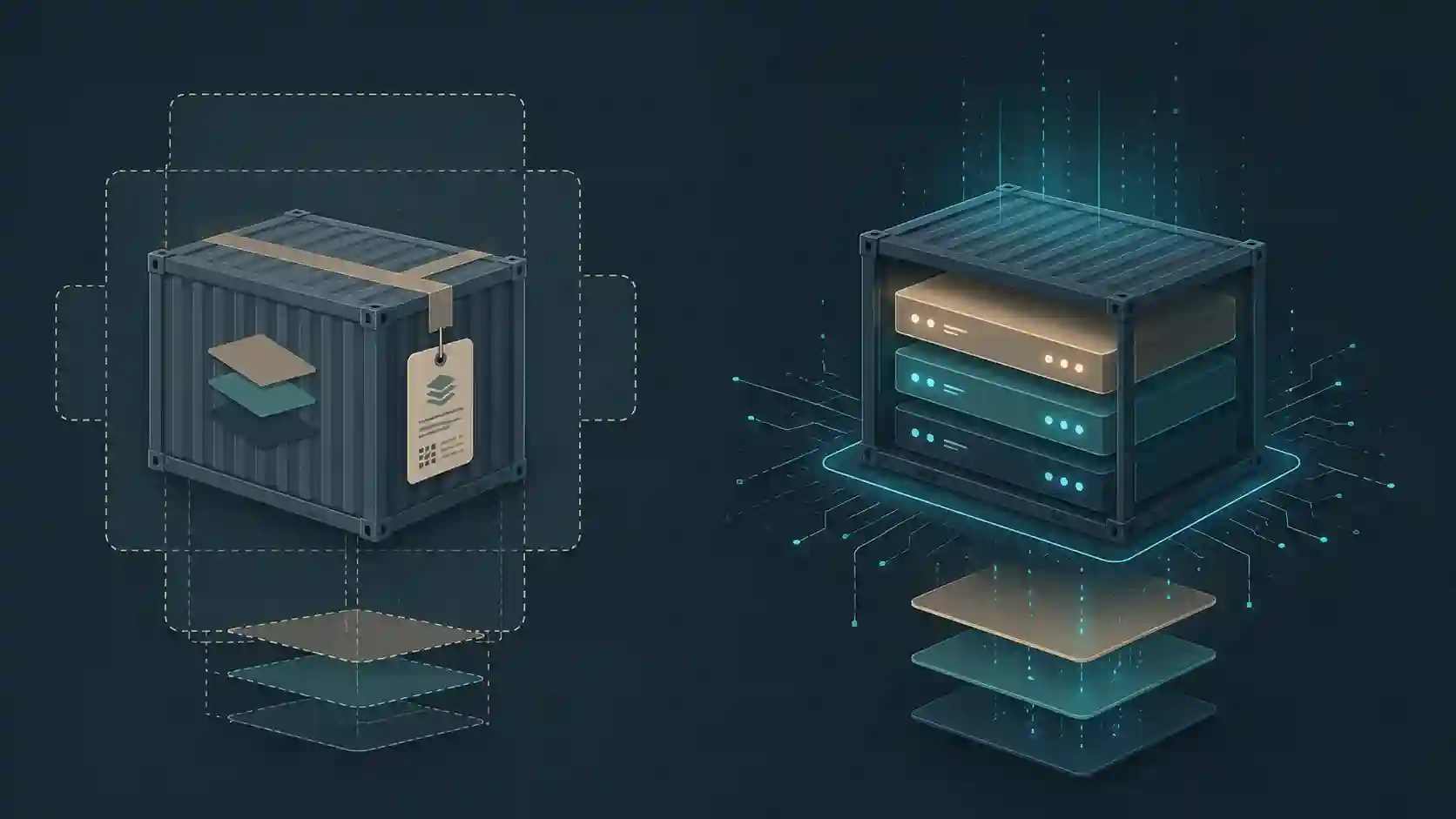
The first time someone tries to understand Docker, they learn to "spin up a container." But when something breaks in production and you need to debug, you realize you don't actually know what's running — is it the image, the container, something else? The confusion comes from a concrete point: images and containers are different things, and treating them as synonyms creates real problems.
If you've already read the Docker introduction guide and want to understand the mechanics more deeply, this is the natural follow-up. The focus here is on the image-vs-container distinction, how layers work, and why it matters day to day.
Image: the immutable template
A Docker image is a read-only package. It contains the application's filesystem — the code, dependencies, configurations, runtime binary — all stacked in layers. Once built, you don't modify an image. If you need to change something, you rebuild.
FROM python:3.12-slim
WORKDIR /app
COPY requirements.txt .
RUN pip install -r requirements.txt
COPY . .
CMD ["uvicorn", "main:app", "--host", "0.0.0.0"]
Each instruction in the Dockerfile becomes a layer. FROM pulls the base layer, RUN adds a layer with the command output, COPY adds another with the copied files. These layers are immutable and identified by hash.
docker image inspect my-api:v1.0 --format '{{json .RootFS.Layers}}'
# ["sha256:a3ed...","sha256:4c7e...","sha256:f891..."]
What makes this efficient is reuse. If two images share the same base layer (python:3.12-slim), Docker stores that layer once on disk. In practice: pulling a new version of your API, when only the code changed, downloads only the new layers — not the entire Python runtime again.
Union filesystem: how layers become a single filesystem
Docker uses a union filesystem (OverlayFS on modern Linux) to stack the read-only layers and present a single unified filesystem to the container. Think of it as stacking transparencies: each layer shows only what changed relative to the previous one.
Layer 4: application code     ← newest, sits on top
Layer 3: installed dependencies
Layer 2: minimal base OS
Layer 1: scratch / FROM base  ← oldest, foundation
On reads, OverlayFS looks for the file in the most recent layer that contains it. If a file exists in multiple layers, the newest wins.
Container: the running instance
A container is what happens when you issue docker run. Docker takes the image (with all its read-only layers) and adds a new writable layer on top. The application process runs inside that isolated environment, sees a complete filesystem, but anything it writes goes to the container's writable layer — not back into the image.
docker run -d --name api-v1 my-api:v1.0
docker run -d --name api-v2 my-api:v1.0
docker run -d --name api-v3 my-api:v1.0
Three containers, one image. Each container has its own writable layer, its own process, its own network namespace — but they all share the same read-only image layers on disk. That's what makes containers lightweight compared to VMs: there aren't three copies of the filesystem, just three thin layers on top of the same shared layer stack.
What happens to the writable layer when a container dies
Here's the point that causes the most confusion: when a container is removed, its writable layer is gone with it. Everything written to the container's filesystem during execution — logs, temp files, generated data — disappears.
docker rm api-v1
# The writable layer of api-v1 is destroyed
If your application needs to persist data across restarts, the answer is volumes:
docker run -d \
  --name api-v1 \
  -v /data/api:/app/data \
  my-api:v1.0
The volume exists outside the container. When the container dies and a new one mounts the same volume, the data is still there.
Lifecycle: the full path
Understanding the lifecycle helps you know where each command operates:
Dockerfile → docker build → image (local)
                             ↓
                        docker push → registry (remote)
                             ↓
                        docker pull → image (local)
                             ↓
                        docker run  → container (running)
                             ↓
                        docker stop → container (stopped)
                             ↓
                        docker rm   → container destroyed
                             ↓
                        docker rmi  → image removed
Stopped container is not destroyed container. docker stop stops the process, but the writable layer still exists. You can docker start it again and the container state (including whatever was written to the writable layer) is still there. Only docker rm destroys it permanently.
# List all containers, including stopped ones
docker ps -a

# See how much space stopped container layers are using
docker system df
Why this distinction matters in practice
Image immutability as a contract
When you tag an image with my-api:v1.2.3 and push it to the registry, that tag should be immutable in production. If you rebuild the image with the same name and tag, you break the contract — someone who deployed v1.2.3 yesterday is running something different from someone who deploys today. Use semantic tags or commit hashes for deployments.
# Better approach in CI/CD
docker build -t my-api:$(git rev-parse --short HEAD) .
Debugging: you want a shell in the container, not the image
A common mistake is trying to "enter the image." An image has no running process — you can't enter it. You enter a container:
# Exec into an already-running container
docker exec -it api-v1 /bin/bash

# Or spin up a throwaway container just to inspect
docker run --rm -it my-api:v1.0 /bin/bash
The --rm destroys the container when you exit. Useful for one-off inspection without leaving behind stale containers.
Cleaning up images vs containers
They're separate operations for a reason:
# Remove stopped containers
docker container prune

# Remove images with no containers using them
docker image prune

# Remove everything not in use (containers, images, volumes, networks)
docker system prune -a
docker system prune -a will remove images you might want to keep cached for the next build. Use with care.
FAQ
What's the practical difference between docker stop and docker rm?
docker stop sends SIGTERM to the container's main process and waits for it to finish (10 seconds by default, then SIGKILL). The container stops, but continues to exist with its writable layer intact. docker rm destroys the container — the process must already be stopped, and the writable layer is gone. In automation (CI/CD, scripts) it's common to chain: docker stop name && docker rm name, or use docker rm -f name which stops and removes in one command.
Can I turn a container back into an image?
Yes, with docker commit. But it's rarely a good idea outside of debugging scenarios. What you get is an image built from the container's writable layer — no instruction history, no reproducible Dockerfile, no cache usable in future builds. The result is an opaque image nobody knows how to reconstruct.
docker commit api-v1 my-api:debug-snapshot
Use it to capture state in an emergency. For production, always rebuild from the Dockerfile.
Why do containers start faster than VMs?
Containers don't virtualize hardware or boot a full kernel — they share the host kernel. "Booting" a container is essentially starting a process with namespaces and cgroups configured. An image with a compiled Go application can be up in under 200ms. A VM needs to initialize BIOS, kernel, OS services — on the order of seconds or tens of seconds.
The takeaway
Image is template, container is instance. Image is immutable, container has temporary state. Image lives in the registry and local cache, container only exists on the machine running it. This separation is what makes Docker composable: you can run ten containers from the same image, kill nine, and the tenth keeps using the same layer cache on disk.
When something breaks in production, knowing whether the problem is in the image (was it built with the wrong code?) or in the container (is the writable layer corrupted? did it lose access to the volume?) makes a real difference in how fast you diagnose it.
The natural next step is understanding how networks and volumes work to connect containers to each other — but that's another post.
- 01 UTF-8 and encoding problems: why accents break and how to fix them What UTF-8 is, code points, mojibake, and why accented text turns to garbage — the mechanism explained end to end.
- 02 MIT, Apache, and GPL Licenses: Practical Differences for Developers MIT, Apache 2.0, and GPL are not the same thing. Understand permissive vs copyleft, patent protection, and compatibility before shipping code to production.