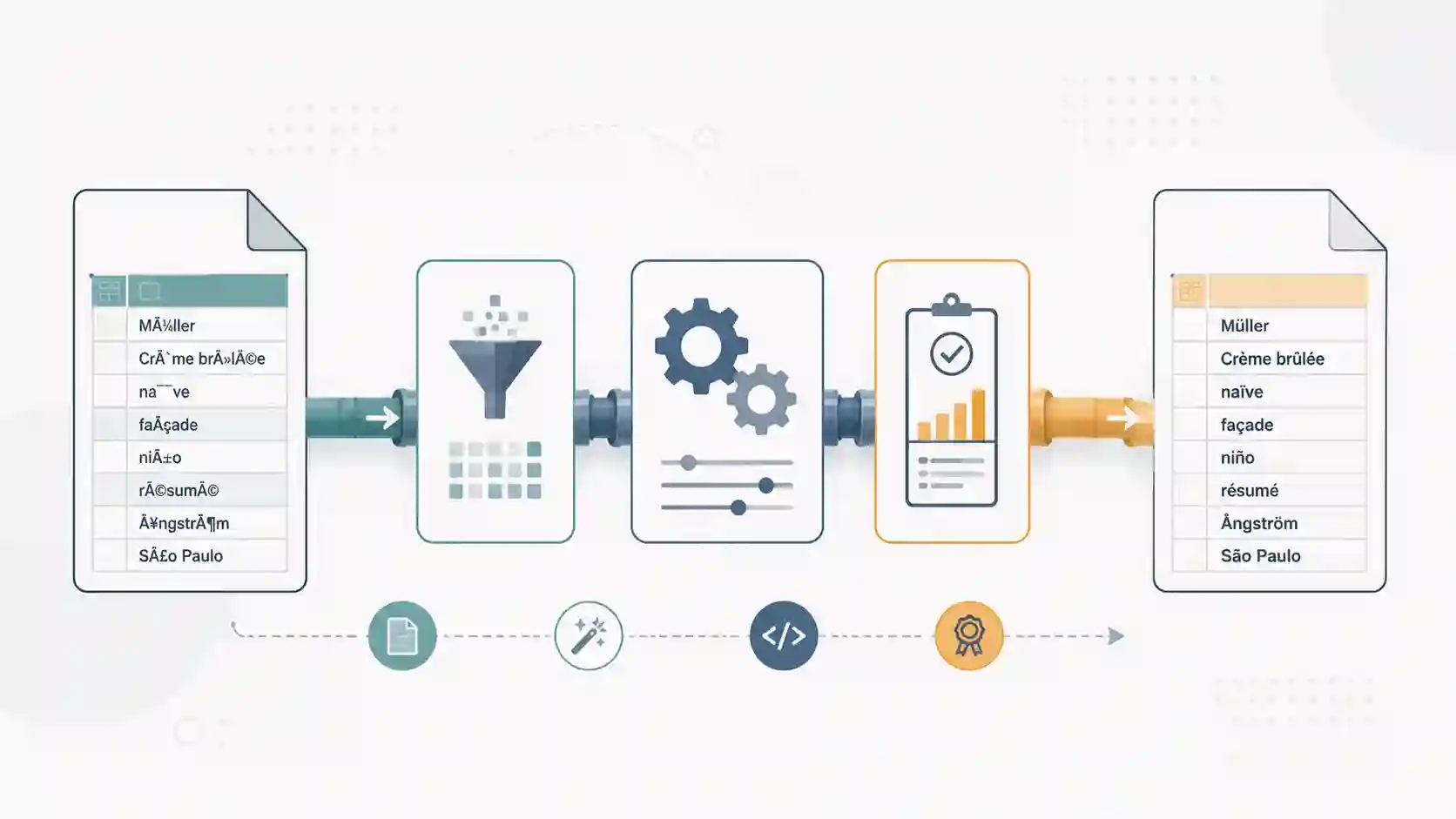
How to Import CSV Files Without Corrupting Characters: Encoding, BOM, and Delimiters
UTF-8, latin1, cp1252, BOM — why your accented characters turn to garbage and how to fix it for good in Excel, Python, and the command line.
Every data pipeline has that classic moment: you receive a CSV from someone, open it in your editor, and half the fields look like ção or “nameâ€. The export was fine. The file arrived intact. The encoding just doesn't match, and now you have garbage where "São Paulo" or "description" should be.
This isn't an edge case — it's the default outcome when data teams, legacy systems, and Excel coexist in the same pipeline. Understanding what's happening takes fifteen minutes. Fixing it without understanding can take days.
What encoding is and why CSV doesn't handle it for you
CSV is a text format with no metadata header. Unlike JSON (also text, but with UTF-8 encoding implied by spec) or XLSX (a ZIP of XML files that declares encoding explicitly), a .csv file carries no information about how it was encoded. You open it and hope the encoding matches.
The most common encodings you'll encounter:
- UTF-8 — the standard for the web, Linux, macOS, and virtually every modern stack
- ISO-8859-1 (latin1) — European legacy, covers Western European accented characters
- Windows-1252 (cp1252) — a superset of latin1, used by Windows in Western locales; this is what Excel generates by default when you "Save As CSV" in most Western Windows installations
The practical difference: ç in UTF-8 is two bytes (0xC3 0xA7). In latin1 and cp1252, it's one byte (0xE7). When you open a cp1252 file as if it were UTF-8, those two bytes are interpreted as two separate characters — and you get ç.
Excel breaking accents: the most common culprit
Excel has a well-documented and deeply annoying behavior: when you double-click a CSV on Windows, it assumes cp1252 (in Western locales) and asks nothing. If the file is in UTF-8, anything with an accent becomes garbage.
The correct fix is not to convert the file — it's to use the import wizard:
- In Excel, go to Data → Get Data → From File → From Text/CSV
- Select the file
- In the preview screen, change File Origin to
65001: Unicode (UTF-8) - Adjust the delimiter if needed
- Load
Older Excel versions use Data → Get External Data → From Text with the same encoding selection step in the wizard. The result is identical.
If the file is genuinely in cp1252 (common for exports from legacy systems, old ERPs, or Windows-generated spreadsheets), select the corresponding option — usually 1252: Western European (Windows).
UTF-8 with BOM: the workaround that helps or hurts
BOM (Byte Order Mark) is a three-byte sequence at the start of a file (0xEF 0xBB 0xBF) that explicitly signals UTF-8 encoding. It's not required by spec, but some programs — including Excel — use the BOM to auto-detect encoding when opening by double-click.
If you control the CSV generation and know it will be opened in Excel, adding a BOM is a pragmatic way to avoid the problem entirely:
# Python: write CSV with BOM for Excel compatibility
import csv
with open('output.csv', 'w', newline='', encoding='utf-8-sig') as f:
writer = csv.writer(f)
writer.writerow(['name', 'city', 'description'])
writer.writerow(['João', 'São Paulo', 'active customer'])
The utf-8-sig encoding in Python writes the BOM automatically. The file is still valid UTF-8 — the difference is that Excel will detect it correctly.
The downside: some old or poorly written parsers treat the three bytes as content and you see name in the first column. Modern tools (Python csv, pandas, PostgreSQL COPY) handle the BOM correctly or have an explicit option for it.
Diagnosing the encoding of an unknown file
Before trying to convert, find out what you have:
# Linux/macOS — file detects encoding by heuristic
file -i data.csv
# expected output: data.csv: text/plain; charset=utf-8
# Python — chardet does statistical detection
python -c "
import chardet
with open('data.csv', 'rb') as f:
print(chardet.detect(f.read(100_000)))
"
# {'encoding': 'ISO-8859-1', 'confidence': 0.73, 'language': ''}
Confidence below 0.9 signals a mixed-encoding file or an unusual charset. In those cases, open the file in binary mode and inspect the bytes manually — or try each candidate encoding and see which produces readable text.
Converting encoding at the command line
Once the encoding is confirmed, conversion is trivial:
# iconv: standard Unix tool
iconv -f windows-1252 -t utf-8 input.csv > output.csv
# Python: more flexible, handles errors explicitly
python -c "
with open('input.csv', 'r', encoding='cp1252') as f_in, \
open('output.csv', 'w', encoding='utf-8') as f_out:
f_out.write(f_in.read())
"
For recurring pipelines, normalizing to UTF-8 at the input stage is the right decision — once, before any processing. This eliminates the entire class of downstream encoding problems.
Delimiters: the problem that comes bundled with encoding
Encoding and delimiter issues tend to show up together as sources of corrupted data. CSV is not truly a standardized format: comma, semicolon, and tab are all used depending on the region and system of origin.
European systems frequently use semicolon as the delimiter because the comma is the local decimal separator. A CSV with ; as delimiter that you try to parse with , will look like a single giant column with all fields concatenated.
# pandas: always specify sep and encoding explicitly
import pandas as pd
df = pd.read_csv(
'data.csv',
sep=';', # don't rely on automatic sniffing in production
encoding='cp1252', # or 'utf-8', depending on origin
dtype=str # prevent automatic type conversion on read
)
The dtype=str deserves emphasis: pandas converts fields that look like numbers — including ZIP codes, ID numbers, and codes with leading zeros — to integers by default. 01310-100 becomes 1310100. Read as string, validate later.
If you're working with ETL and integrating multiple CSV sources into a larger pipeline, the ETL vs ELT breakdown is useful context for deciding where to put encoding normalization — in the extract step or the transform step.
Inspecting and converting files in the browser
For small files or quick inspection without installing anything, I use Quick Tools' CSV to JSON to preview the content and verify that accented characters are coming through correctly before processing. If the file opens with garbage in the preview, the problem is in the source encoding — and I know where to fix it before it hits the pipeline.
Frequently asked questions
Why does my CSV open incorrectly in Excel but display correctly in other programs?
Excel on Windows assumes cp1252 when opening CSVs by double-click. If the file is in UTF-8, accented and special characters appear corrupted. The fix is to import through Data → Get Data, not open directly. There you choose the correct encoding before loading.
How do I check whether a CSV file is in UTF-8 or latin1?
Use file -i file.csv in the terminal (Linux/macOS) or the chardet module in Python. On Windows, Notepad++ shows the encoding in the status bar and lets you re-encode via the Encoding menu. A quick visual signal: if the file has accented characters and you see them as ção, the file is likely UTF-8 being read as latin1. If you see ????, it could be any unsupported encoding.
Should I always use UTF-8 for my CSVs?
Yes, for any new system. UTF-8 is the standard for the web, all modern programming languages, and most databases. If you need Excel compatibility without requiring users to configure anything, use utf-8-sig (UTF-8 with BOM) — Excel detects it automatically and opens correctly.
What do I do when the CSV has mixed encoding, with some lines in UTF-8 and others in latin1?
This happens when files from different sources are concatenated without normalization. The most robust approach is to read line by line, try UTF-8 first and fall back to latin1/cp1252 on decode error:
def decode_line(raw_bytes):
try:
return raw_bytes.decode('utf-8')
except UnicodeDecodeError:
return raw_bytes.decode('cp1252', errors='replace')
The errors='replace' substitutes undecodable bytes with ? instead of raising an exception — useful for not halting the pipeline on dirty data.
Correct encoding is not optional
Most encoding bugs in data pipelines are not hard to fix — they are hard to diagnose because the symptom (corrupted data) appears far from the cause (file opened with the wrong encoding). Normalizing to UTF-8 at the pipeline input, specifying encoding and delimiter explicitly in code, and never trusting automatic sniffing are three rules that permanently eliminate this class of problem.
- 01 How LLMs Generate Responses: Tokens, Prediction, and Sampling Explained Tokenization, autoregressive prediction, temperature, and Top-P: the internal mechanics of how language models turn a prompt into text.
- 02 Clean Code Without Dogma: What Actually Matters Clean Code became a religion. Here's which principles have real ROI, which are cargo-culted rules, and how to push back on dogmatic code reviews.